Reference clip
Solo spotlight reference
Put your chosen lead singer in the spotlight for a Tiny Desk Outstanding close-up.
Put your chosen lead singer in the spotlight for a Tiny Desk Outstanding close-up. Start as a guest with one photo. Generating a video uses credits.
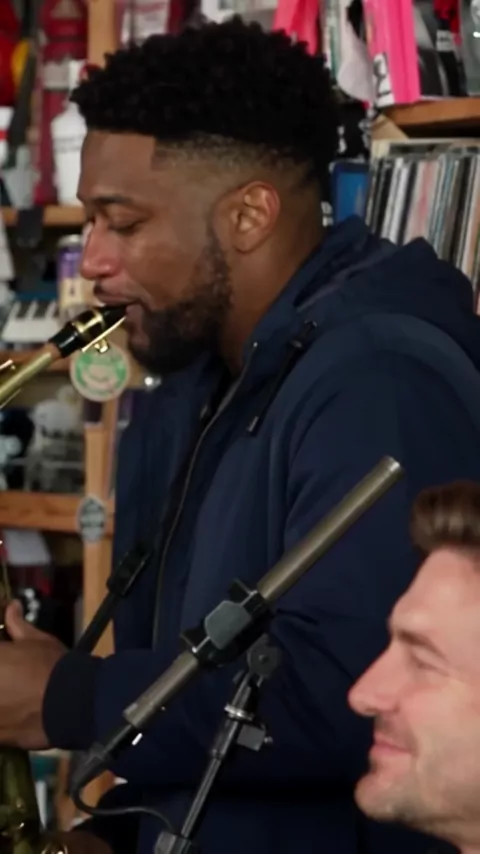
Solo spotlight gives one person the lead singer’s position. The reference frames the performer in close-up, so you can plan around an expression that reads well when the face fills the shot. A clear portrait of someone laughing, smiling, or keeping a straight face can give the same setup a different tone.
Choose this scene for a clip about one person. The positioning preview marks the lead singer, which is the only portrait slot you need to fill.
The spotlight reference keeps the singer close to the camera. Notice how much of the frame the face fills before choosing the expression for your own portrait.
Put your chosen lead singer in the spotlight for a Tiny Desk Outstanding close-up.
Start with a head-and-shoulders photo of one person. Keep both eyes, the mouth, and the outline of the face visible. Leave a little space above the head and around the chin so the portrait has room to fit the frame.
Take the photo facing a window or another soft light source. If a cap shadows the eyes or a hand covers the mouth, choose a clearer shot. Pick a photo you have permission to use.
The spotlight reference shows the lead singer framed from close range.
Pick a clear head-and-shoulders portrait with both eyes and the mouth visible for the singer’s close-up.
Pick the portrait you want in the close-up and check the placement before generating.
Open the Lead singer slot and upload one clear photo. A head-and-shoulders crop leaves room around the face.
Look at the positioning preview to see which performer your photo will replace. Choose an available resolution and check the price on the Generate button.
Select Generate when the option is available and you have enough credits. Follow progress or download the finished clip from My videos.
A single portrait lets one expression or one person carry the moment.
Try a portrait with a knowing grin or an exaggerated deadpan when you want to send a short reaction to a running joke.
Put the birthday person in the lead slot, then add your own greeting when you share the clip.
Use a clear portrait of yourself to make a short introduction for a personal post or a profile update.
Check the credit cost and price for each resolution. The Generate button shows the amount for the resolution you select.
Photo and framing tips for the one-person scene.
Your portrait goes in the Lead singer slot. The positioning preview highlights the singer’s face, and the reference video shows the close-up.
If the photo is sharp, crop it to the head and shoulders first. Keep the hairline and chin in the frame so the face stays visible.
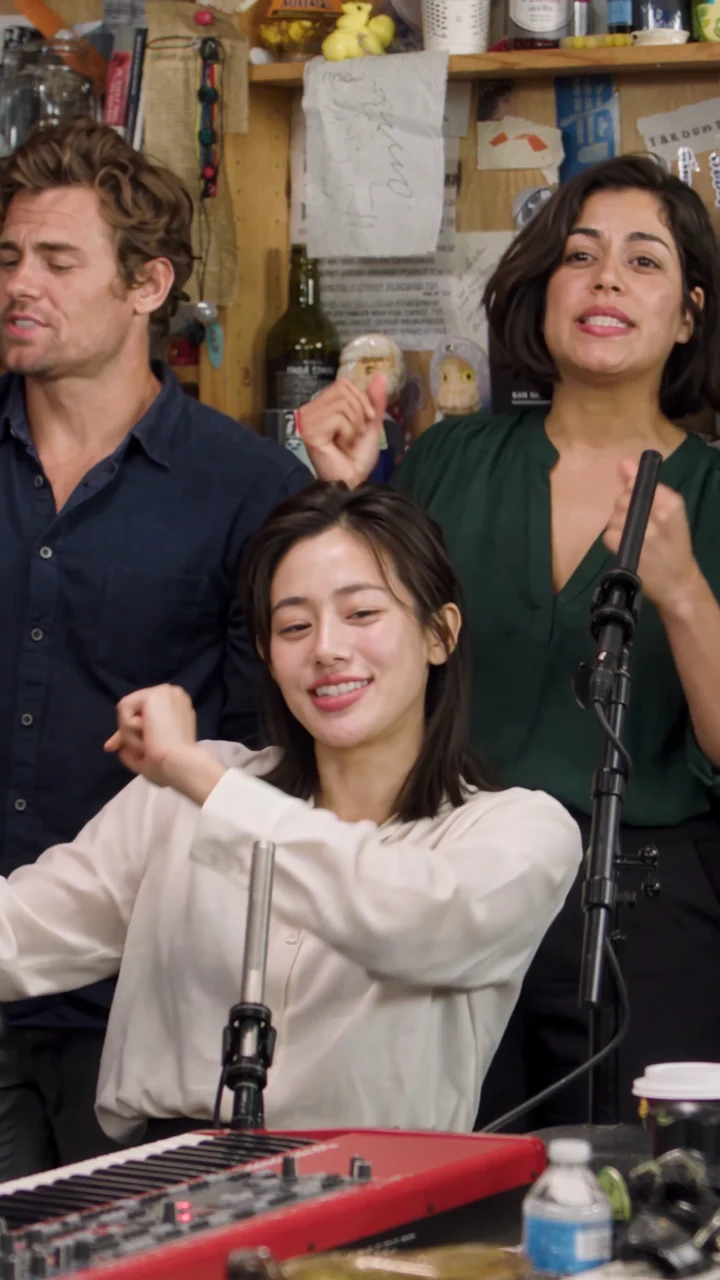
Choose Duo exchange if you want two people in the keyboard and saxophone roles. Solo spotlight uses one portrait for the lead singer.
You can start as a guest. Sign in when you want to keep your videos and credits with an account.
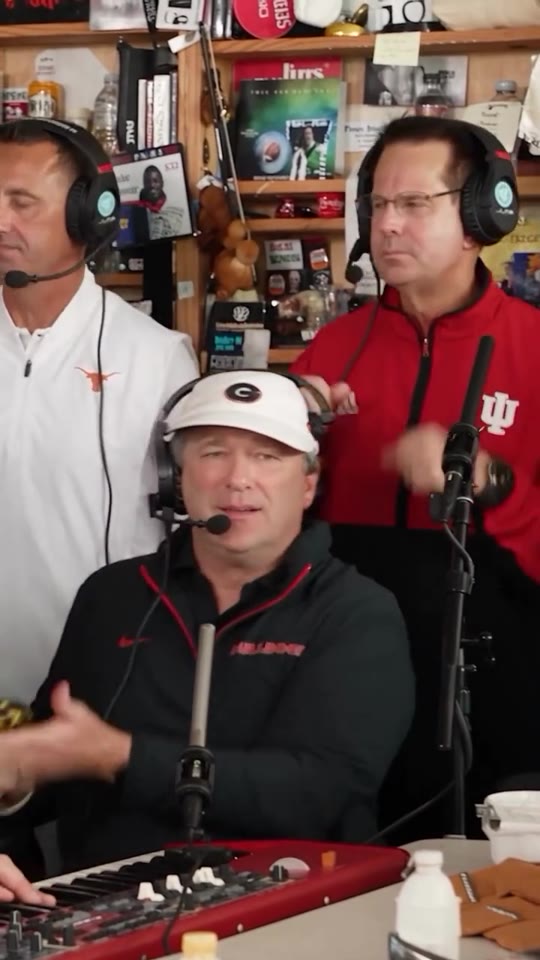
Duo exchange lets you add one or two portraits to the keyboard and saxophone positions. Five-person band opens three more slots for a larger group.